Main service operations, Firebase sync, command execution
Service stdout
service_stdout.log
The service runner's stdout, captured verbatim by owlette-host
Service stderr
service_stderr.log
The service runner's stderr, captured verbatim by owlette-host — interpreter-level tracebacks that never reach the logger land here
Service host
service_host.log
owlette-host's own narration — service registration, agent spawns, exit codes, restart backoff, stop escalations
hoot
cortex.log
hoot runtime and CLI fetch. Only written when hoot is enabled.
Pairing
pairing_debug.log
Device-code pairing and token setup
Token exchange
oauth_debug.log
Every registration-code → token exchange: the URL called, and the response status and headers. Response bodies are never written — they carry tokens.
Self-update installer
installer_update.log
Inno Setup log written during remote agent updates
Defender setup
defender_setup.log
The installer's Defender-exclusion retraction step (removes the exclusions pre-PawnIO versions added) — one entry per install
roost scrub reports
roost_scrub_reports\
One JSON report per roost integrity scrub
Interactive installer
Path passed with /LOG=...
Inno Setup log for manual installs; no fixed ProgramData installer log is written by default
Main shared-logger files use rotating file handlers: 10 MB per file, 5 backups. owlette-host rotates the three files it writes by size, keeping exactly one .1 sibling each: 10 MB for service_stdout.log and service_stderr.log, 2 MB for service_host.log. tmp/status_writer.log rotates at 100 KB with 2 backups, and pairing_debug.log uses plain writes — truncated at the start of each pairing run, while oauth_debug.log appends across runs rather than rotating. Old main logs are auto-deleted after 90 days by default.
The window and the tray icon — startup, status polling, service control, and pairing dialogs
This one is per-user: it belongs to whoever the app runs as, typically the machine's auto-login account, not the LocalSystem account the service runs as. It rotates at 4 MB and keeps 4 files (owlette-desktop_<date>.log), and its timestamps are local time, so they line up with service.log — a field report usually wants both.
logs removed in 3.0.0
gui.log, tray.log, and report_issue.log no longer exist — the Python programs that wrote them were replaced by the desktop app. Upgrading prunes any left behind.
Run the agent in the console to watch it live. Stop the service first, so two agents never run at once:
net stop OwletteServicecd C:\ProgramData\Owlette\agent\srcC:\ProgramData\Owlette\python\python.exe owlette_runner.py
owlette_runner.py is the exact process owlette-host supervises — same bundled interpreter, same working directory — so this is the code path the service runs. Log lines still go to service.log; an interpreter-level traceback prints to the console. Ctrl+C shuts it down cleanly, and net start OwletteService hands the machine back to the host.
requires administrator
The agent must be run from an elevated command prompt — the service normally runs as LocalSystem.
Symptoms: Service fails to start, or starts and immediately stops.
Check:
Stop the service and run the agent in the console, so a startup crash lands in front of you instead of in a log:
net stop OwletteServiceC:\ProgramData\Owlette\python\python.exe C:\ProgramData\Owlette\agent\src\owlette_runner.py
This is the exact command owlette-host runs. Press Ctrl+C to stop, then net start OwletteService.
Check service.log for startup errors, and service_host.log for what owlette-host saw — the spawn, the exit code the agent returned, and any crash-loop backoff. A traceback that never reached the logger lands in service_stderr.log.
Verify Python is installed: C:\ProgramData\Owlette\python\python.exe --version.
Verify C:\ProgramData\Owlette\config\config.json is valid JSON.
Common causes:
Corrupt config.json: repair it, or move it aside and re-run pairing so the agent can create a fresh config.
Missing packaged files or Python dependencies: repair or reinstall the agent.
Broken service registration after a failed upgrade: rerun the packaged repair flow or reinstall the service.
Symptoms: Machine shows offline (red/grey) despite the service running.
Check:
Verify service is running: sc query OwletteService.
Check service.log for Firebase connection errors.
Verify internet connectivity.
Check firewall rules for outbound HTTPS (port 443) to the configured API host (owlette.app or dev.owlette.app) and Firebase services.
Verify firebase.site_id in C:\ProgramData\Owlette\config\config.json.
Common causes:
No internet: The agent keeps running locally but cannot update Firestore.
OAuth token expired: Check for token refresh errors in service.log; the agent should auto-refresh when the stored refresh token is valid.
Wrong site_id: The config is paired to a different dashboard site.
Firebase disabled: Check firebase.enabled is true in config.json.
Heartbeat has not refreshed yet: Presence and metrics use an adaptive interval: about 5 seconds while the desktop app's window is open, 30 seconds when monitored processes are active, and 120 seconds when idle.
The console prints a 3-word pairing phrase and the authorization link for the server this machine is bound to, then starts polling. Open that link from any device — this machine, a phone, another computer — and enter the phrase. Nothing opens a browser here on its own.
Wait for authorization to complete, then restart the service.
If pairing fails before authorization completes, check C:\ProgramData\Owlette\logs\pairing_debug.log. If the phrase was authorized but the token exchange failed, check oauth_debug.log beside it.
Symptoms: Configured processes crash but are not restarted.
Check:
Verify launch_mode is always, or scheduled with the current time inside a configured schedule window.
Check if the relaunch_attempts limit has been reached. The counter resets on manual restart.
Verify the exe_path exists and is correct.
Check service.log for launch errors.
Check time_delay and time_to_init if restarts are delayed after a failure.
Common causes:
Executable not found: Launch fails, process_launch_failed is logged, and an exe_missing alert may be sent.
Relaunch limit reached: The reboot prompt should have appeared.
Permission error: Service may not have access to the executable path.
User-session launch issues: Managed launches use CreateProcessAsUser and process_launcher.py; check service/session token errors in service.log.
When the executable is missing, the service logs process_launch_failed and sends an exe_missing alert with suggested sibling paths when it can find likely replacements. The dashboard toast can open the process edit dialog with a suggested path pre-filled.
Symptoms: The owlette service itself uses excessive resources.
Normal usage: ~20-50 MB RAM, <1% CPU.
If excessive:
Check if debug logging is enabled.
Look for rapid reconnection loops in service.log.
Verify no circular config updates; hash tracking should prevent feedback loops.
Check whether the desktop app's window is open. Metrics and heartbeat uploads run about every 5 seconds while it is on screen, 30 seconds while processes are active, and 120 seconds when idle. Closing the window back to the tray drops the machine to the slower cadence.
Symptoms: Clicking open owlette from the tray does nothing, or the window closes immediately after opening.
Check:
Look at service.log for the launch attempt — the service reports both the launch and a missing executable.
Look at %LOCALAPPDATA%\app.owlette.desktop\logs\owlette-desktop.log — the app records its own startup there in release builds, so a crash after launch shows up here rather than in service.log.
Verify the desktop app exists: C:\ProgramData\Owlette\app\owlette-desktop.exe.
Try launching manually:
"C:\ProgramData\Owlette\app\owlette-desktop.exe"
Confirm the WebView2 runtime is installed — the app renders in it and cannot open a window without it. The installer adds it when missing, but a blocked or offline install can leave it absent:
A printed version means the runtime is present; no output means it is missing. A pv of 0.0.0.0 counts as missing — it is the "not installed" value Microsoft documents, and the filter above drops it, exactly as the installer's own detection does. WebView2 installs machine-wide or per-user, so all three keys are checked.
Check C:\ProgramData\Owlette\tmp\status_writer.log for status-file write decisions.
The service writes service_status.json immediately when important state changes and otherwise uses a 30-second refresh floor with content-change throttling. The status file has nested service, firebase, and health sections.
The agent reads CPU temperatures through LibreHardwareMonitor, which uses the PawnIO kernel driver — a signed, sandboxed driver that runs vetted modules instead of exposing raw hardware access. The installer deploys PawnIO 2.2.0 automatically and it is Microsoft-signed, HVCI-compatible, and not on any vulnerable-driver blocklist, so no Defender exclusions are needed. (Versions up to 3.1.0 used the WinRing0 driver instead, extracted at runtime as python.sys — upgrading removes that driver, its R0python service, and the Defender exclusions it required.)
Verify the driver: Get-Service PawnIO should show Running (it is demand-start, so Stopped is also normal when nothing is reading sensors). If it is missing, CPU temperatures read as blank while GPU temperatures keep working through vendor APIs — reinstall it with winget install namazso.PawnIO or by re-running the agent installer.
Opt out of temperature monitoring: set "temperature": { "enabled": false } in C:\ProgramData\Owlette\config\config.json — it takes effect within one metrics tick, no restart needed. All sensor reads stop; temperature fields simply disappear from the dashboard. A missing temperature section means enabled.
Note: PawnIO is a shared component (other tools such as FanControl use it too), so uninstalling the agent leaves it installed — remove it separately from installed apps if it is no longer needed.
# Check service statussc query OwletteService# Start servicenet start OwletteService# Stop servicenet stop OwletteService# Restart servicenet stop OwletteService && net start OwletteService# View service configurationsc qc OwletteService
All commands require Administrator privileges.
The desktop app restarts the service without one. restart service in the app's menu writes tmp/restart.flag; the service picks it up on its next loop and exits 42, and owlette-host relaunches it immediately — no UAC prompt. The tray icon's right-click menu carries the same item, with one difference: a service that is already stopped has no loop to read the flag, so the tray starts it through the SCM instead, which is the one path that can prompt for elevation.
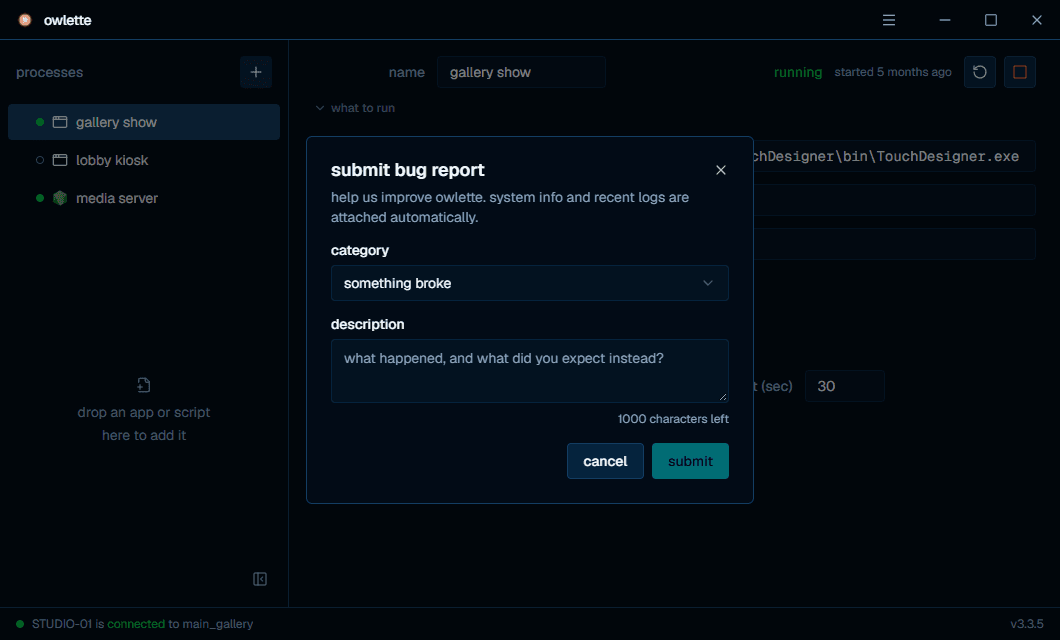
Use submit bug report in the desktop app's menu — it also takes feature requests and general feedback. The agent attaches the machine's system metrics and the last 100 lines of service.log automatically, along with the hostname and site id, so the report arrives diagnosable.